Google Drive — Connector Configuration
Once a Google Drive connection is created, clicking into it (via Edit) opens the Connector Configuration panel. This panel has four sections, accessible from the left sidebar: Overview, Sync History, Scheduling, and Settings.
Steps
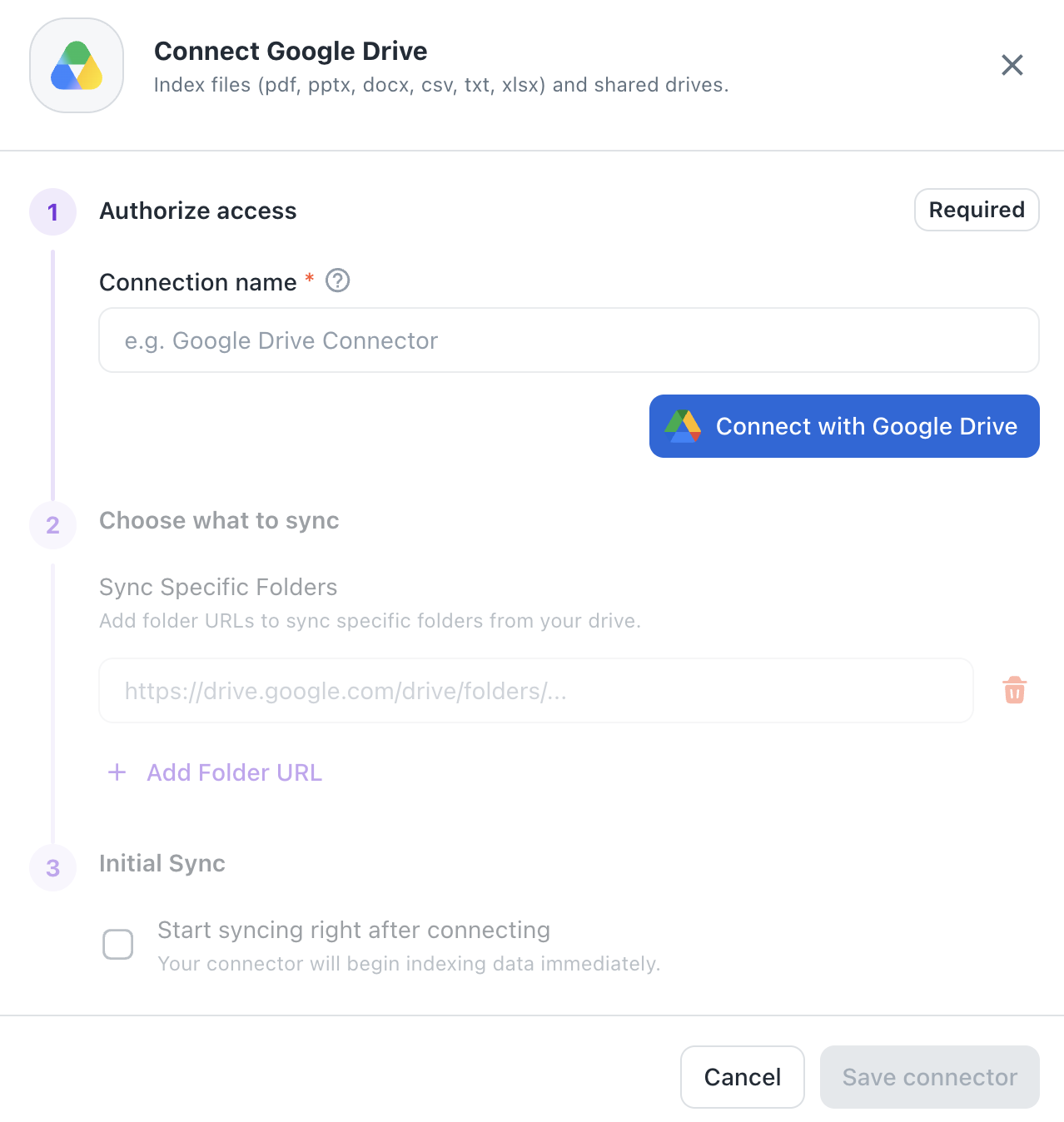
1. Authorize access (Required)
- Enter a Connection name (e.g. "Google Drive Connector")
- Click Connect with Google Drive to authenticate via OAuth
2. Choose what to sync
- Sync Specific Folders — add one or more folder URLs (e.g.
https://drive.google.com/drive/folders/...) - Use + Add Folder URL to include additional folders
- Use the trash icon to remove a folder from the list
3. Initial Sync
- Optionally check Start syncing right after connecting to begin indexing immediately upon setup
4. Save
- Click Save connector to complete setup, or Cancel to discard
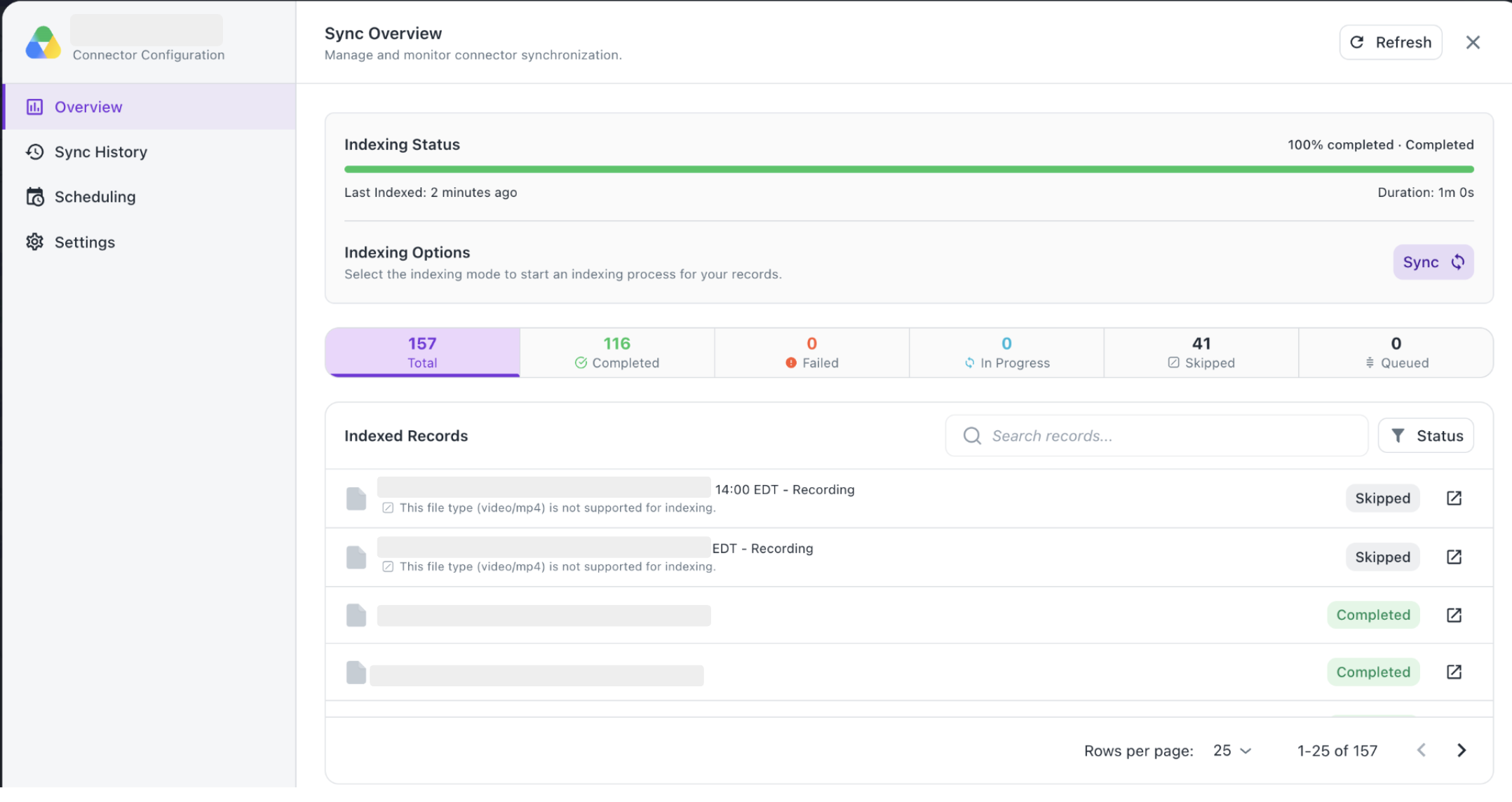
1. Overview (Sync Overview)
Manage and monitor connector synchronization for this connection.
- Indexing Status — a progress bar showing overall completion (e.g. "100% completed · Completed"), along with:
- Last Indexed — how long ago the last indexing run occurred (e.g. "2 minutes ago")
- Duration — how long the last run took (e.g. "1m 0s")
- Indexing Options — a Sync button to manually trigger a new indexing run for this connector
- Record stats row — a breakdown of all records processed in the last run:
- Total — total number of records found
- Completed — records successfully indexed
- Failed — records that errored out during indexing
- In Progress — records currently being processed
- Skipped — records excluded from indexing (e.g. unsupported file types)
- Queued — records waiting to be processed
- Indexed Records — a searchable, filterable list of every file processed, showing:
- File name and icon
- Status badge (
Completed,Skipped, etc.) - A reason note for skipped/failed files (e.g. "This file type (video/mp4) is not supported for indexing")
- A link-out icon to open the file at its source
- Search records bar and Status filter to narrow the list
- Pagination controls (rows per page, page navigation)
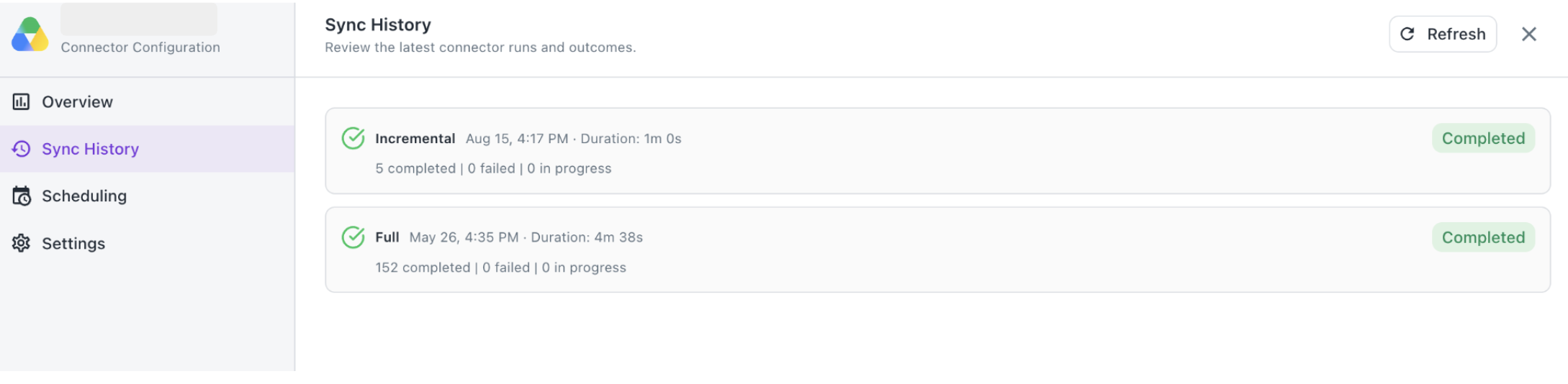
2. Sync History
Review the latest connector runs and outcomes.
- Each entry represents one past sync run, showing:
- Run type —
Incremental(only new/changed files) orFull(entire drive re-synced) - Timestamp — when the run started (e.g. "Aug 15, 4:17 PM")
- Duration — how long the run took (e.g. "Duration: 1m 0s")
- Result summary — counts of completed / failed / in-progress records for that run
- Status badge — overall outcome (e.g.
Completed) This gives a historical audit trail of every sync, useful for troubleshooting when and why data changed.
- Run type —
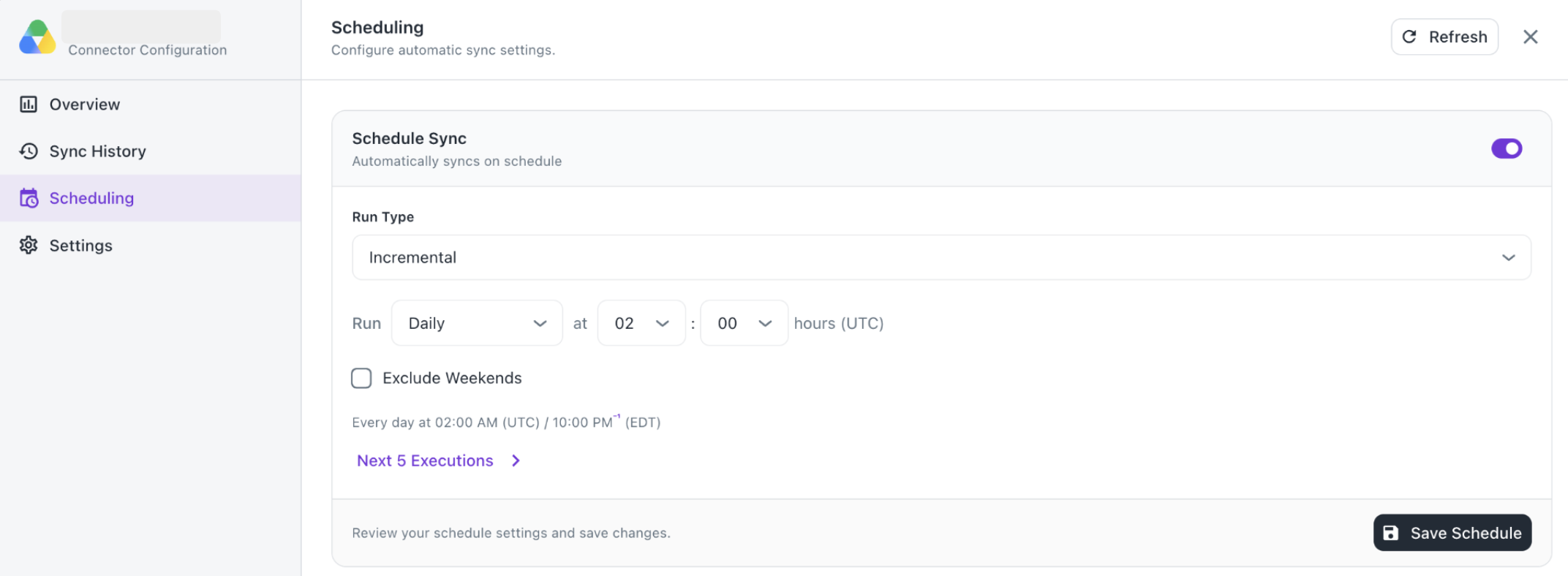
3. Scheduling
Configure automatic sync settings so the connector runs without manual intervention.
- Schedule Sync toggle — turns automatic syncing on or off
- Run Type — choose the sync mode for scheduled runs (e.g.
Incremental) - Run — set frequency (e.g.
Daily) and time (hour : minute, in UTC) - Exclude Weekends — checkbox to skip scheduled runs on Saturdays/Sundays
- A summary line confirms the effective schedule in both UTC and local time (e.g. "Every day at 02:00 AM (UTC) / 10:00 PM (EDT)")
- Next 5 Executions — expandable link to preview the next few scheduled run times
- Save Schedule — commits any changes to the schedule
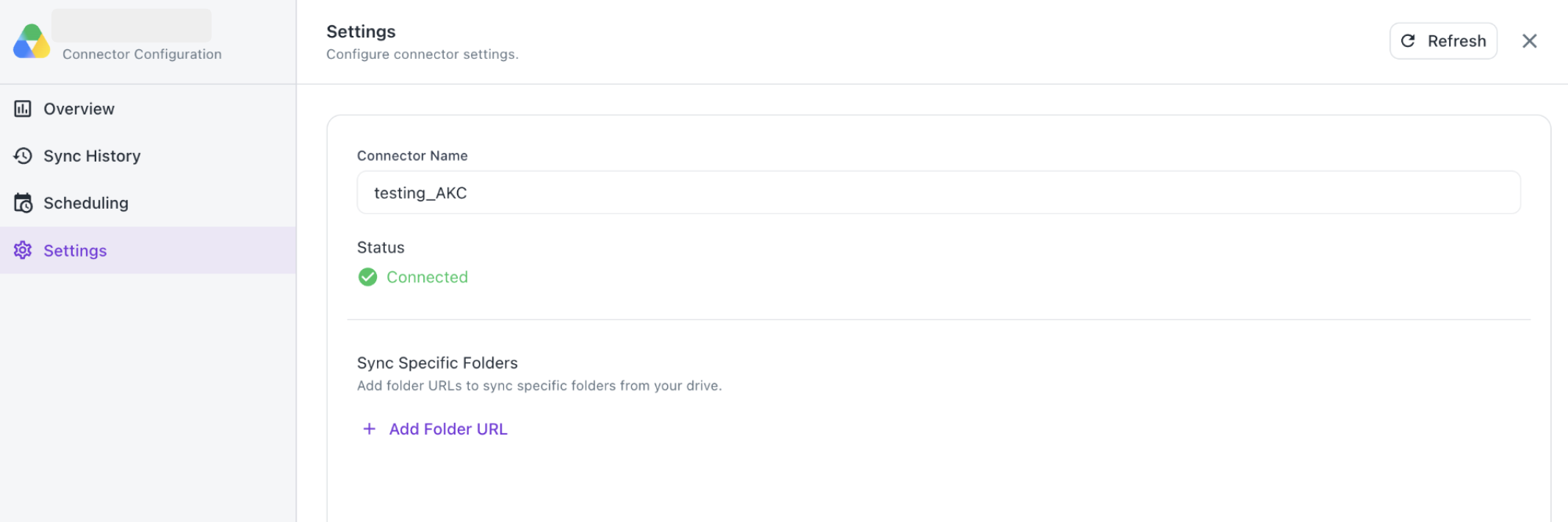
4. Settings
Configure connector-level identity and scope.
- Connector Name — editable label identifying this connection (e.g. "testing_AKC")
- Status — live connection health indicator (e.g. ✅ Connected)
- Sync Specific Folders — restrict indexing to specific folder(s) instead of the whole drive
- Add a folder via its Google Drive URL
- Each added folder shows a checkmark (validated) and the resolved folder name
- Trash icon removes a folder from the sync scope
- + Add Folder URL to add more folders Refresh (top right, available on every tab) reloads the latest connector state.
Was this helpful?